Inference GUI Walkthrough
First Setup Login
On Prem:
Connect your system to an electrical outlet and an active ethernet network.
Power on the system by pressing the power button on the front panel.
Cloud:
Login to the endpoint URL provided to you by Positron, typically groupname-olivaw.fly.dev.
You will be prompted to log in with your Google account via Auth0.
Main Screen
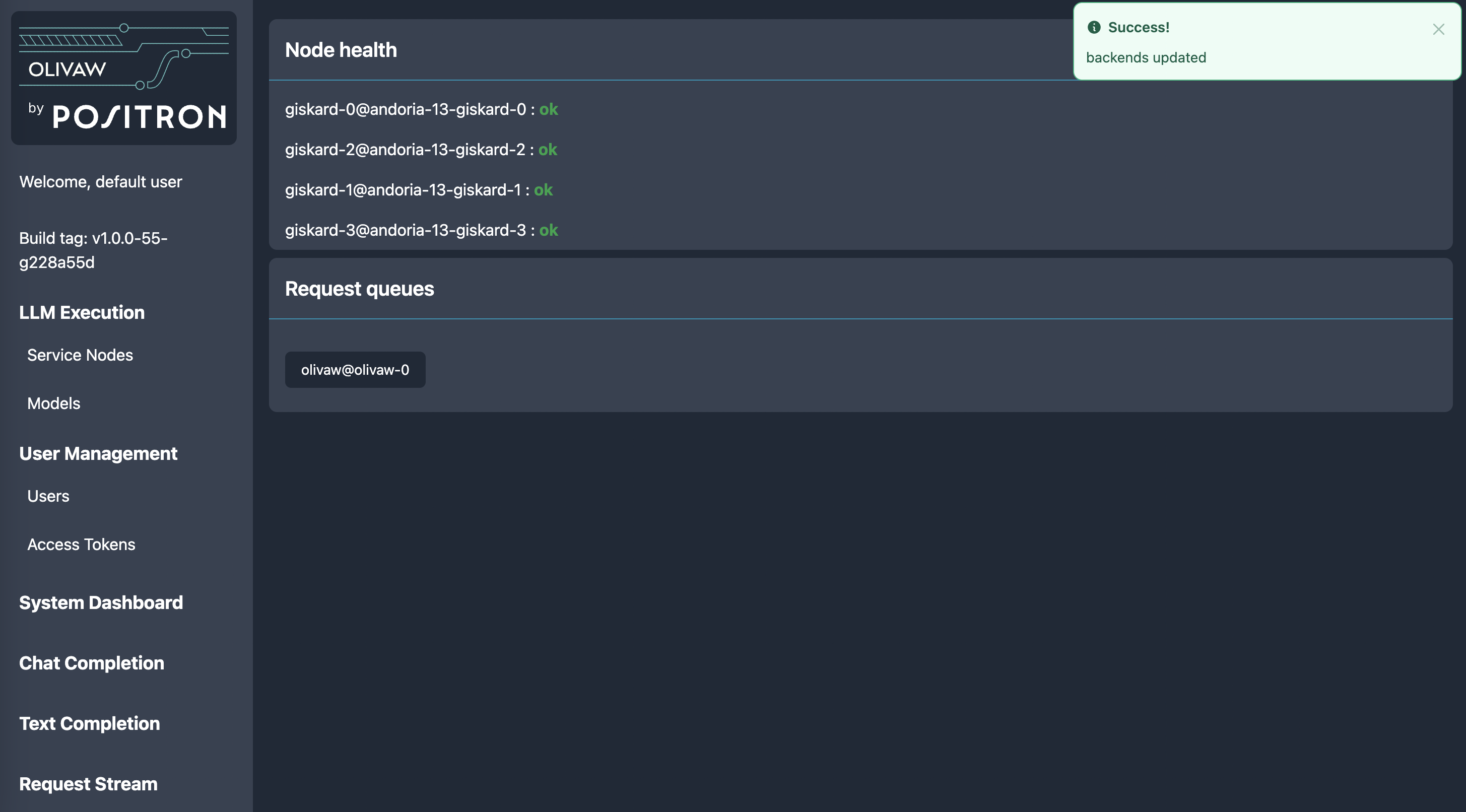
The main screen comprises the menu bar on the left and some key status information on the right.
Note:
The informational panels may change in the future.
Node Health
This page lists all service nodes that are connected to olivaw. Typically this will be all of the connected giskard nodes, but if you set up vllm or OpenAI nodes they will appear here too. The system will periodically perform health checks to ascertain if the service nodes are available and healthy.
Service Nodes
You can access the service nodes via the navigation bar on any screen:
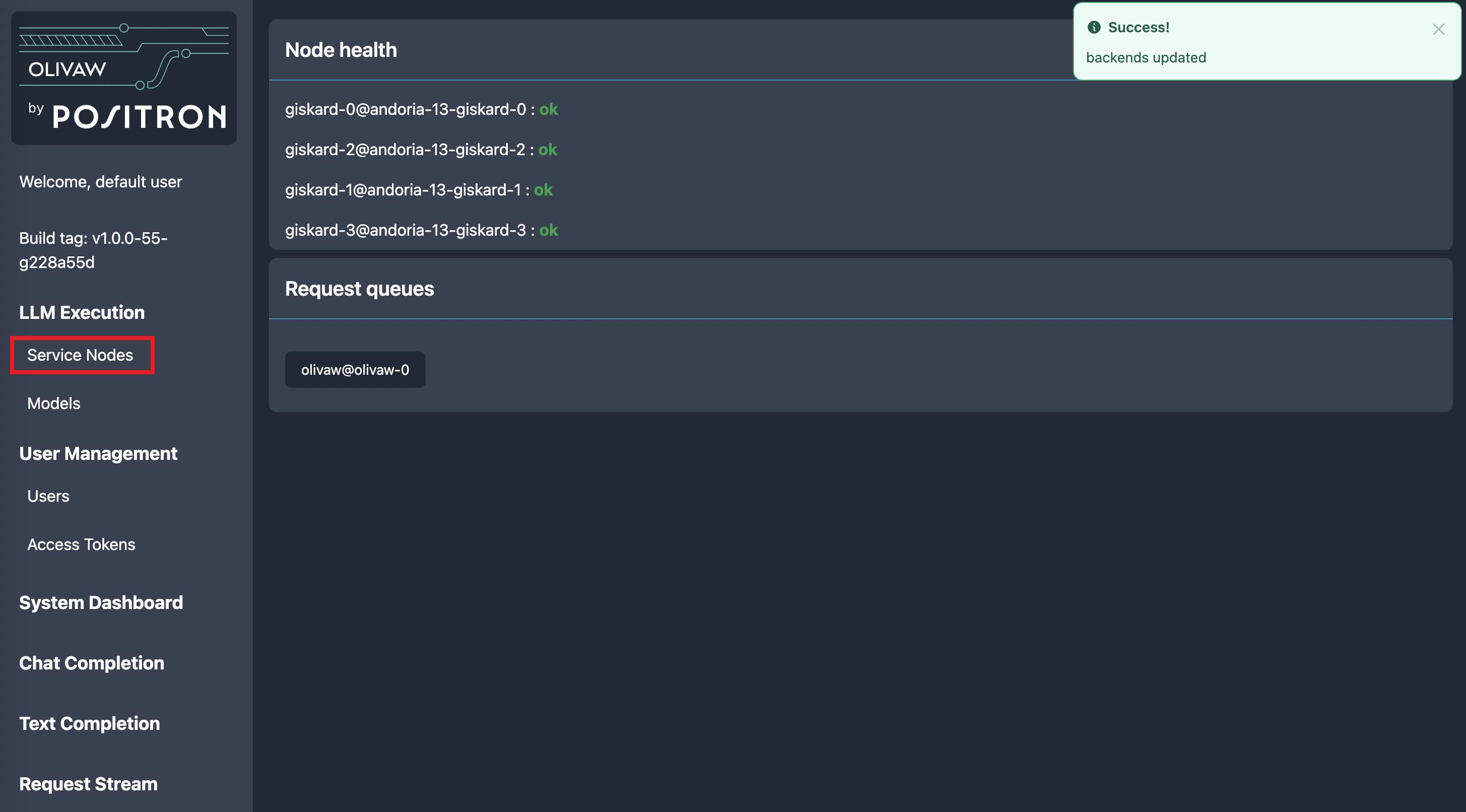
Clicking on this will bring you to a list of all nodes that olivaw is aware of. These may be configured manually, or in the case of GiskardNodes (Positron back-end hardware appliance nodes), they will self-configure.
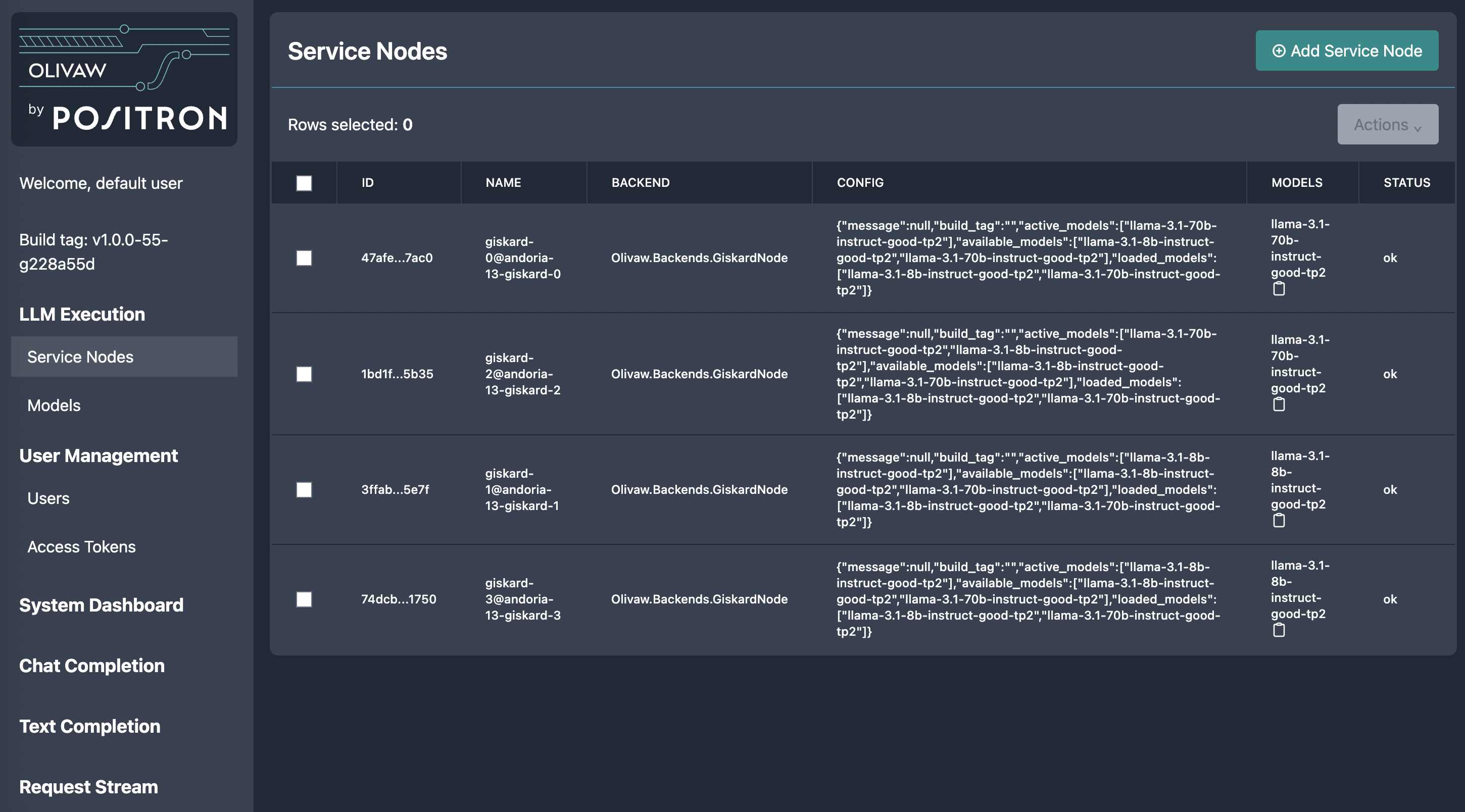
Here there is a table of available nodes. The ID is shown to facilitate identification of issues as the ID will be presented in log information. Each node is associated with a backend type, JSON configuration, a list of models they are capable of serving, and an active status (same as on the main screen). Note that the JSON configuration may contain extra informational content.
You may also select service nodes by checking the left hand side checkbox; this activates the “actions” button in the upper right corner. Here you may apply actions to the selected service nodes, including:
Delete
Sync Models
Delete will cause olivaw to forget about the service node and its configuration.
Note: some service nodes (e.g. Giskard nodes) may autoconnect to olivaw and that action will repopulate the node into olivaw.
Sync Models will query the service node and ensure that the available models on the service node are known to olivaw.
{
          "type": "heading",
          "attrs": {
            "level": 2,
            "id": "first-setup-login"
          },
          "content": [
            {
              "type": "text",
              "text": "First Setup Login"
            }
          ]
        },
From the Service Nodes table, you may either select a service node to examine by clicking on its id or create a new service node, which will bring you to the Service Node (singular) window.
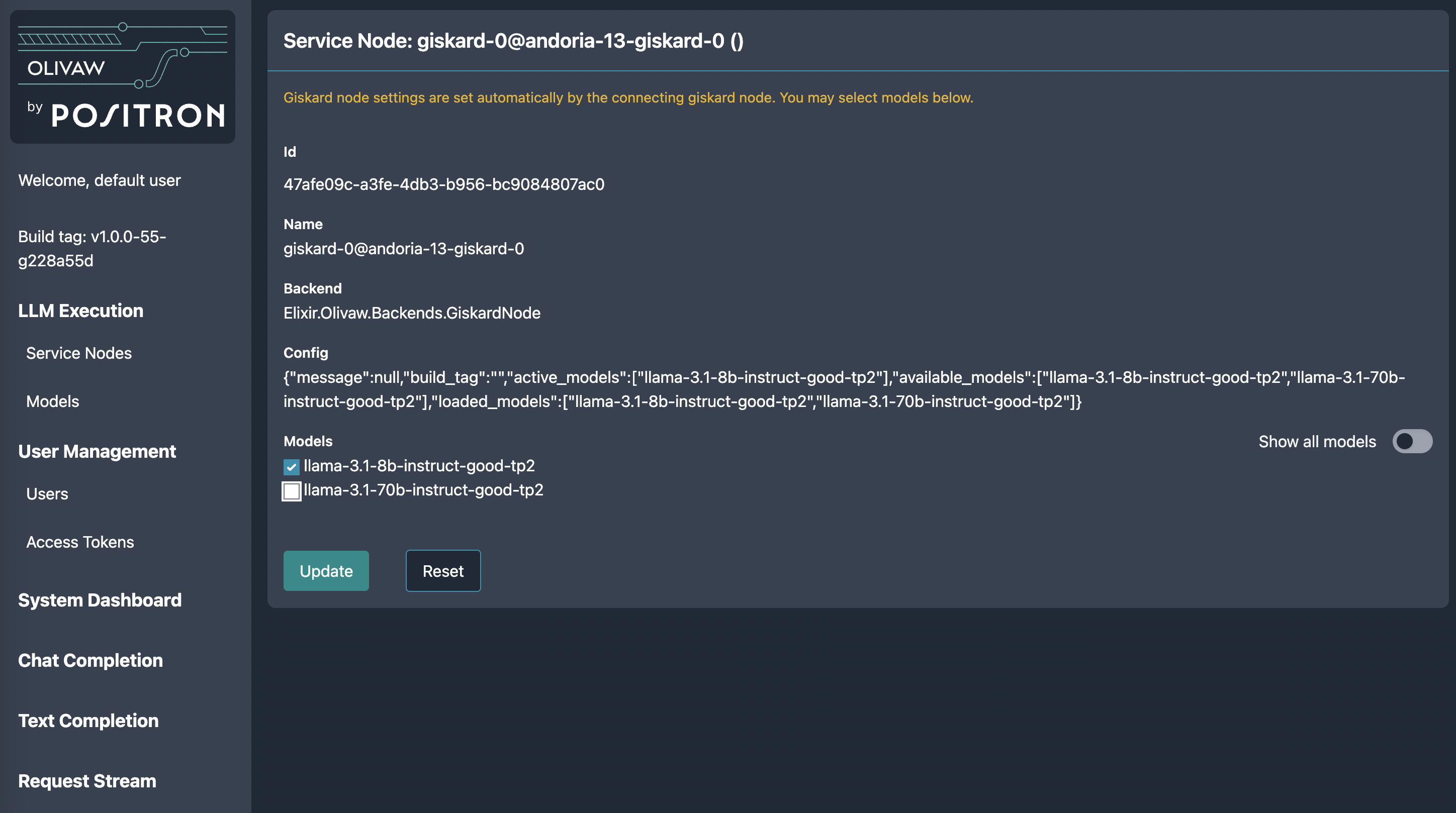
Here you may create or alter information in the service nodes. Note that some nodes may automatically self-configure (e.g. GiskardNodes) so this will not have an effect. Place a check mark next to the Models you want loaded on your Atlas device.
Chat Completion
A demonstration application for Positron’s Inference service is located under the Chat Completion section of the navigation bar.
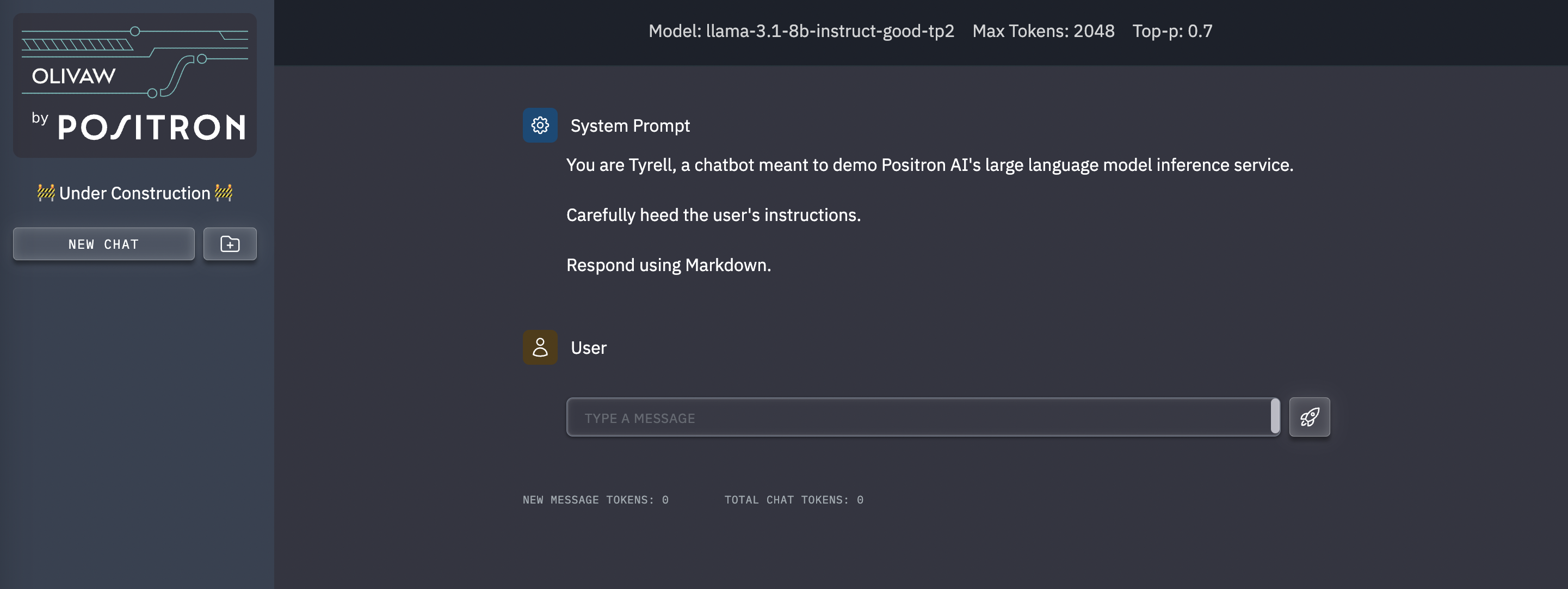
You may adjust the Model and associated parameters by clicking on the model name at the top of the Chat Completion application.
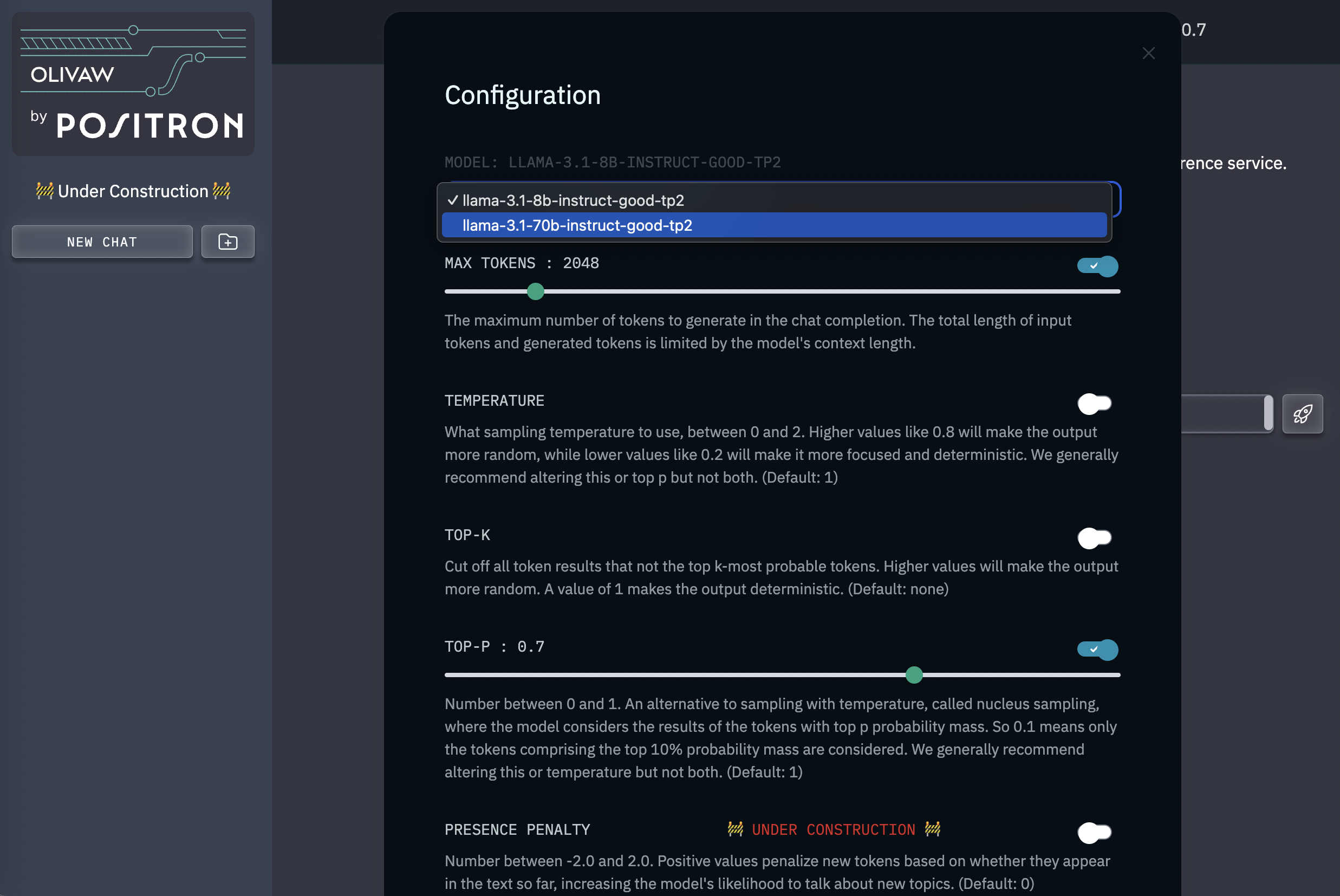
Make your desired selections then close the Configuration pane by clicking on the ‘X’ in the top right.